Open your document in Microsoft Word and make sure you are on the page where you want the page numbering to start. This will typically be on the first page after the Cover page, generally the Declaration page.

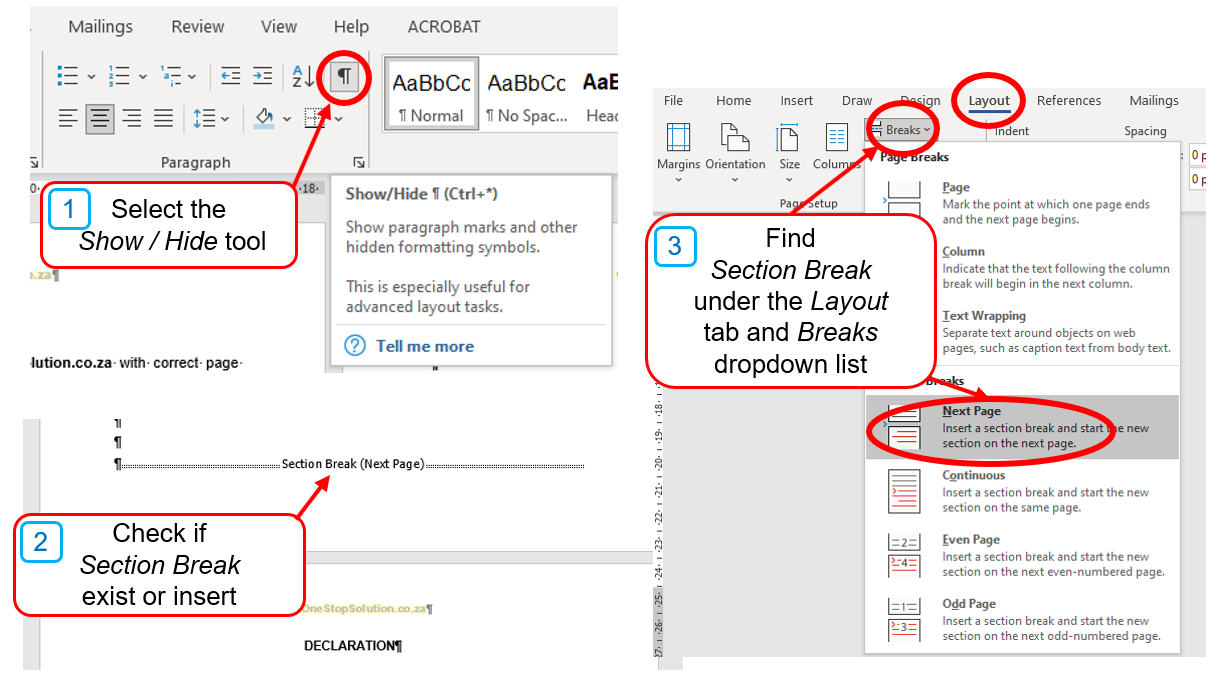
Check if a section break has been inserted on the previous page. To see section breaks, select the Show/Hide tool in the "Paragraph" tab of the menu section. Insert a section break if not present.
The Section break is available in the "Layout" tab in the Word toolbar, click on "Breaks," and select "Next Page" under the "Section Breaks" section. This will create a new section for the page numbering of your document.
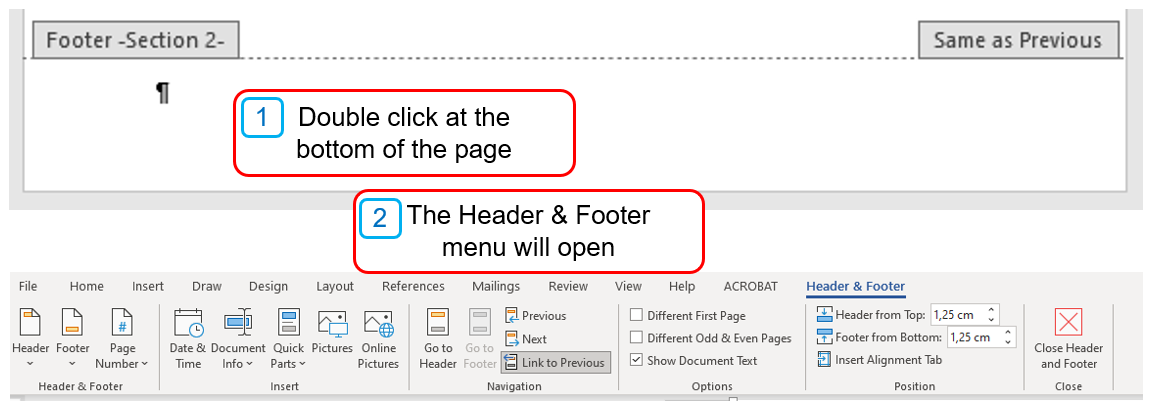
Move the mouse to the footer area of the page where the page numbers are to start and double click. This will open the Header & Footer menu where page numbers can be inserted.
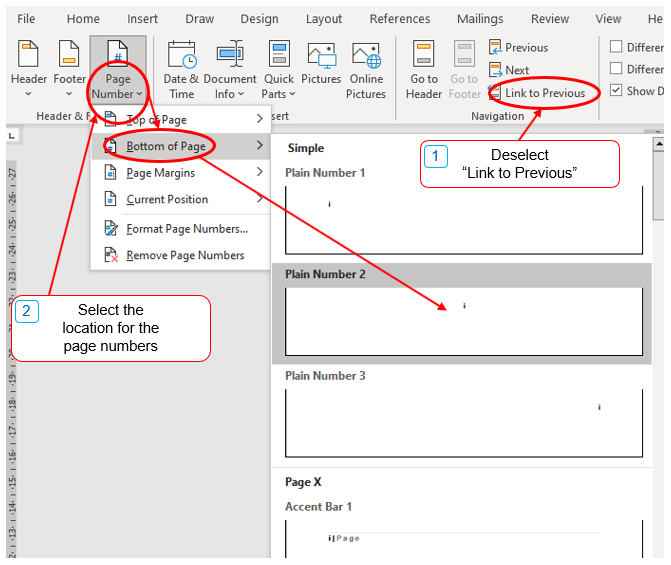
Locate the "Link to Previous" button and deselect it. Click on "Page Number," and select "Bottom of Page" or any other desired position for the page numbers.
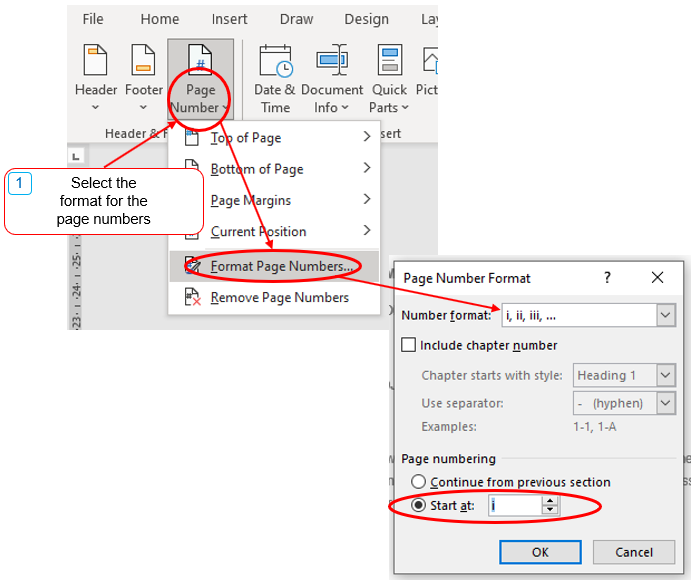
Click on "Page Number" and select "Format Page Numbers" from the drop-down menu. In the "Page Number Format" dialog box, select the Roman numerals "i, ii, iii, ..." from the "Number Format" options. Make sure to set the "Start at" value to "i" or the desired page number.
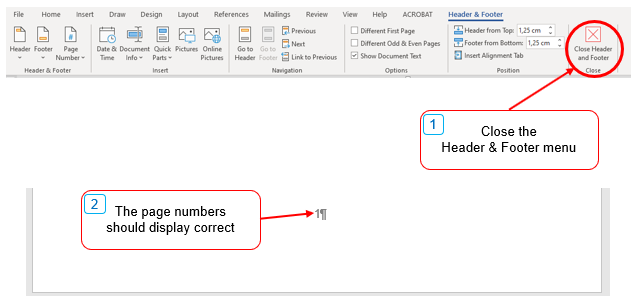
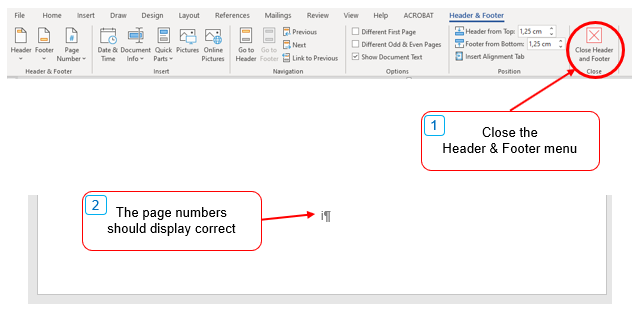
Close the Header and Footer menu. The page number should now display in the correct format.
Move to the section of the document where the page numbers will change from Roman numerals to Arabic numerals. Typically on the page where Chapter One starts.

Repeat Step 2. Check if a section break has been inserted on the previous page. To see section breaks, select the Show/Hide tool in the "Paragraph" tab of the menu section. Insert a section break if not present. The Section break is available in the "Layout" tab in the Word toolbar, click on "Breaks," and select "Next Page" under the "Section Breaks" section. This will create a new section for the page numbering of your document.
Move the mouse to the footer area of the page where the page number is to start and double click. This will open the Header & Footer menu where page numbers can be inserted.
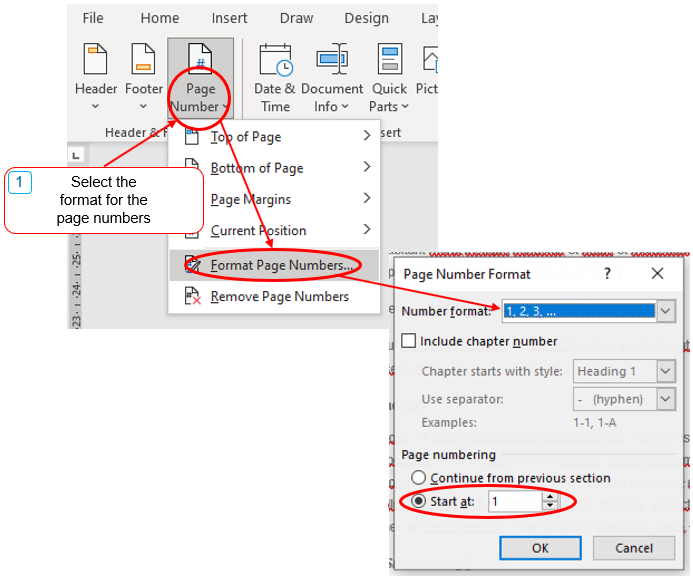
Click on "Page Number" and select "Format Page Numbers" from the drop-down menu. In the "Page Number Format" dialog box, select the Arabic numerals "1, 2, 3, ..." from the "Number Format" options. Make sure to set the "Start at" value to "i" or the desired page number.
Close the Header and Footer menu. The page number should now display in the correct format.